 My Photo Copy
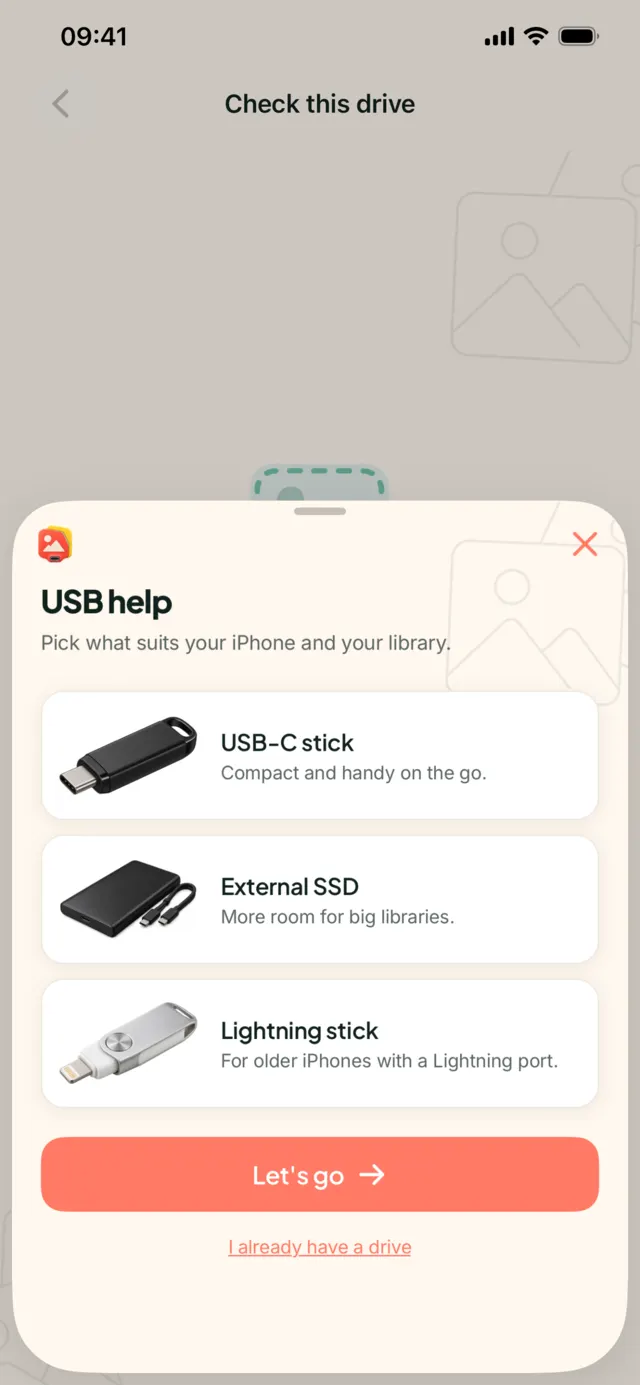
For an iPhone 15 or later, a USB-C flash drive from a known brand works for most photo libraries, and a portable SSD is the better choice once the library is large or mostly video. For an iPhone 14 or earlier, use a Lightning flash drive that shows up in the Files app, or Apple’s Lightning to USB 3 Camera Adapter with an ordinary drive. Whichever you pick, buy about 1.5 times the size of your photo library and format it exFAT.
First, which connector does your iPhone have?
- iPhone 15 and later have USB-C. Drives with a USB-C plug go straight in; anything with a USB-A plug needs a small USB-C to USB-A adapter.
- iPhone 14 and earlier have Lightning. You need either a drive with a Lightning plug or Apple’s Lightning to USB 3 Camera Adapter, which gives you a full-size USB port plus a Lightning port for power.
Speed differs too. Lightning, and the USB-C port on the non-Pro models, transfer at USB 2 speed. The Pro models from the iPhone 15 Pro onwards support much faster USB 3 transfers, but only with a cable or drive rated for USB 3. On a USB 2 iPhone, a fast SSD won’t copy faster than a decent stick, though it will still keep its speed better on a long run.
The four options compared
| Type | Works with | Good for | Watch out for |
|---|---|---|---|
| USB-C flash drive | iPhone 15 and later | Libraries up to a few hundred GB. Small, cheap, no cable. | Cheap sticks slow down or get warm on long copies. |
| Portable SSD | iPhone 15 and later directly; older via the USB 3 adapter with power | Large libraries, lots of 4K or ProRes video, regular backups. | Some need more power than the phone gives; bring the cable it came with. |
| Lightning flash drive | iPhone 14 and earlier | Small to medium libraries on an older phone. | Slower, and some only work through their maker’s app. It must appear in Files. |
| SD card reader | Any iPhone with the right reader | Using cards you already own, for example a camera’s. | SD cards are easy to lose and small cards are often FAT32. |
A spinning external hard drive can also work, and it is the cheapest per terabyte, but it draws more power than the phone can supply. It needs its own power supply or a powered USB-C hub. Knocking it while it runs is also worse for it than for an SSD.
How big a drive to buy
Check your library first: Settings → General → iPhone Storage → Photos. If Optimise iPhone Storage is on, that figure is smaller than your real library, because most originals are in iCloud. In that case check Settings → [your name] → iCloud, where the storage breakdown shows how much Photos uses.
If you’d rather estimate from counts, a photo averages about 3.5 MB and a video about 120 MB, though both vary a lot with settings and length. Then add half again for growth.
| Library | Roughly | Buy |
|---|---|---|
| 5,000 photos, 200 videos | 40 GB | 64 GB |
| 10,000 photos, 500 videos | 95 GB | 256 GB |
| 25,000 photos, 1,500 videos | 270 GB | 512 GB |
| 50,000 photos, 3,000 videos | 530 GB | 1 TB |
Videos dominate. A library with a few hundred 4K clips can be bigger than one with tens of thousands of photos, and ProRes files are larger again. If you film a lot, go a size up.
Power: the usual reason a drive “doesn’t work”
An iPhone supplies a limited amount of power to whatever is plugged in. Flash drives and most small SSDs are within it. Larger SSDs, hard drives and some card readers may not be, and the phone either shows “This accessory is not supported” or doesn’t show the drive at all.
- On USB-C iPhones, a powered USB-C hub between the phone and drive fixes most of this.
- On Lightning iPhones, use the Lightning to USB 3 Camera Adapter and plug a charger into its Lightning port. The older, plain Lightning to USB Camera Adapter has no power input and often can’t run drives at all.
More fixes are in “accessory not supported” and drives not showing in Files.
What else to look for
- A known brand, from a reputable seller. Counterfeit sticks report a capacity they don’t have and quietly corrupt files once they fill up. A backup that reads every file back afterwards will catch it; a plain copy won’t.
- Sustained write speed, not the headline number. The big figure on the box is usually read speed. Reviews that test long writes are more useful.
- Heat and size. A stick sticking out of the phone for an hour gets warm and is easy to knock. A short-cable SSD sits flat on the table.
- The format it ships in. Many drives come exFAT, but small sticks are often FAT32 and Windows hard drives are often NTFS. Reformatting to exFAT takes a minute.
Buy two, if you can
One drive is one copy. It can fail, be lost, or be in the same bag or house as the phone when something goes wrong. Two smaller drives, one kept somewhere else, protect you better than one large one. Travelling is where this matters most; see travel photo backup without a laptop.
Once you have the drive, iPhone USB backup without a computer walks through the backup itself.
Use the drive you bought
My Photo Copy backs up to USB-C sticks, SSDs, Lightning drives, SD card readers or any folder in Files, and verifies every file. The first 250 photos and videos are free.