 My Photo Copy
If your iPhone shows "This accessory is not supported", "Cannot Use Accessory" with a note that it "requires too much power", or the drive simply never appears in Files, start with power: the drive is asking for more than the iPhone or adapter can supply. On a Lightning iPhone, switching to Apple's Lightning to USB 3 Camera Adapter with a charger plugged in fixes most cases. On USB-C, a powered hub does the same for SSDs and hard drives. If power isn't it, check the adapter, the cable, and whether the drive is formatted NTFS.
The exact wording of these alerts has changed between iOS versions, and you may see slightly different text. The fixes below apply whichever version you get.
First, where to look
Open the Files app, tap Browse, and look under Locations. A working drive appears there by its name. If it's listed, the iPhone sees it and the problem is with writing to it (see format, below). If it isn't listed, the problem is the connection or power.
1. Unlock the iPhone and reconnect
If the iPhone has been locked for a while, iOS blocks new USB accessories until you unlock it. Unlock the phone, unplug the drive, and plug it back in firmly. Check the port for lint too; a Lightning or USB-C port packed with pocket dust makes a poor connection.
2. Power: the most common cause
An iPhone supplies only a small amount of power to accessories. Small flash drives are fine. Portable SSDs, spinning hard drives and some large flash drives want more, and the iPhone refuses them.
iPhone 14 and earlier (Lightning)
- Apple's Lightning to USB Camera Adapter (the USB 2 one, without a charging port) often can't power drives. This is the classic source of "This accessory is not supported".
- Apple's Lightning to USB 3 Camera Adapter has a Lightning port for power. Plug a charger into it, then connect the drive. This fixes most power problems.
- A Lightning flash drive that plugs straight into the phone avoids the adapter entirely.
iPhone 15 and later (USB-C)
- USB-C flash drives usually work directly.
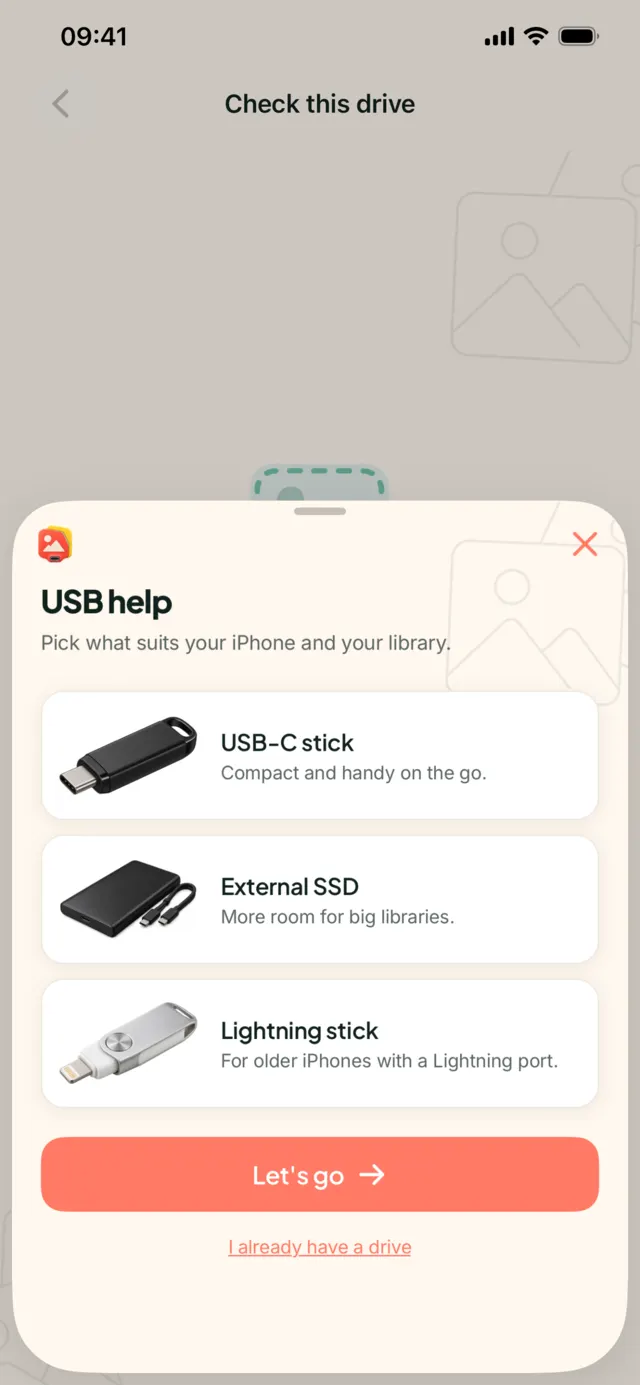
- For an SSD or hard drive that gets refused, use a powered USB-C hub with a charger connected, or a drive that has its own power supply.
- Keep the phone charging during a long copy either way.
3. Adapter, hub and cable
Third-party adapters vary a lot. Some unbranded Lightning adapters are not Apple-certified and are rejected outright, or work once and then stop after an iOS update. If you can, test with an Apple adapter.
Cables matter as well. Some cheap USB-C cables are made for charging and carry little or no data. If a drive works with one cable and not another, keep the one that works. Remove extra dongles and hubs in the chain; each one is another place for power or data to drop.
4. The drive shows up but you can't save to it
This is almost always the format.
| Format | On iPhone | What to do |
|---|---|---|
| exFAT | Reads and writes | Keep it. Works on Mac and Windows too. |
| FAT32 / MS-DOS (FAT) | Reads and writes | Works, but files over 4 GB fail. Long 4K videos won't fit. |
| APFS / Mac OS Extended | Works with Apple devices | Fine if you never use the drive on Windows. |
| NTFS | iPhone can't write to it | Reformat as exFAT. |
Many drives sold for Windows come formatted NTFS. Reformatting erases the drive, so copy off anything on it first. On iOS 18 and later you can do it in Files: long-press the drive, tap Erase, and choose ExFAT. Full steps for iPhone, Mac and Windows are in how to format a USB drive for iPhone.
A drive split into several partitions, or one that has never been formatted, can also fail to appear. Reformatting it as a single exFAT volume on a computer usually sorts that out.
5. Restart, update, and try another drive
- Restart the iPhone. It clears a stuck accessory state more often than you'd expect.
- Update iOS. Settings → General → Software Update. External drive support has improved over several versions.
- Try another drive in the same setup, and the problem drive on a computer. If the drive fails everywhere, it's the drive. If only the iPhone rejects it, it's power, adapter or format.
If a drive has been dropping off during copies, don't trust what's on it yet. Once it's stable, run a backup that reads every file back to check it. Why copied isn't the same as verified.
If the drive disconnects in the middle of a backup
A drive that connects and then drops out partway through is nearly always a power problem, even if it looked fine at first. Add power (charger on the USB 3 adapter, or a powered hub) and start again. My Photo Copy lets you stop and continue later: the next run picks up where the last one stopped, and every file that was verified before the drop stays verified.
Drive working? Back it up
My Photo Copy copies your photo and video originals to the drive and verifies every file. No computer, no cloud, no account. Free for the first 250 photos and videos.

Still choosing a drive? Which USB drive works with iPhone covers power and format before you buy. For the backup itself, see iPhone USB backup without a computer.