 My Photo Copy
To verify a photo backup, you need three things: a result that reads every file back off the drive rather than just reporting that it sent them, a count you can compare with your Photos library, and a few files opened on a different device. "Copied" means the phone handed the bytes to the drive. "Verified" means someone checked what actually landed there. Most backup tools, including dragging files around in the Files app, only give you the first.
Why "copied" is not enough
A copy can go wrong in quiet ways. The drive can be unplugged for a moment. A cheap flash drive can report success and store garbage. A FAT32-formatted drive can refuse any file over 4 GB, so a long 4K video simply isn't there. An iCloud original can fail to download on a patchy connection, and the app moves on. None of these show up as a red error if the tool only counts what it sent.
The result is a backup that looks complete, with the right folder structure and roughly the right size, but with gaps you find years later when you need a particular video.
What verification checks in My Photo Copy
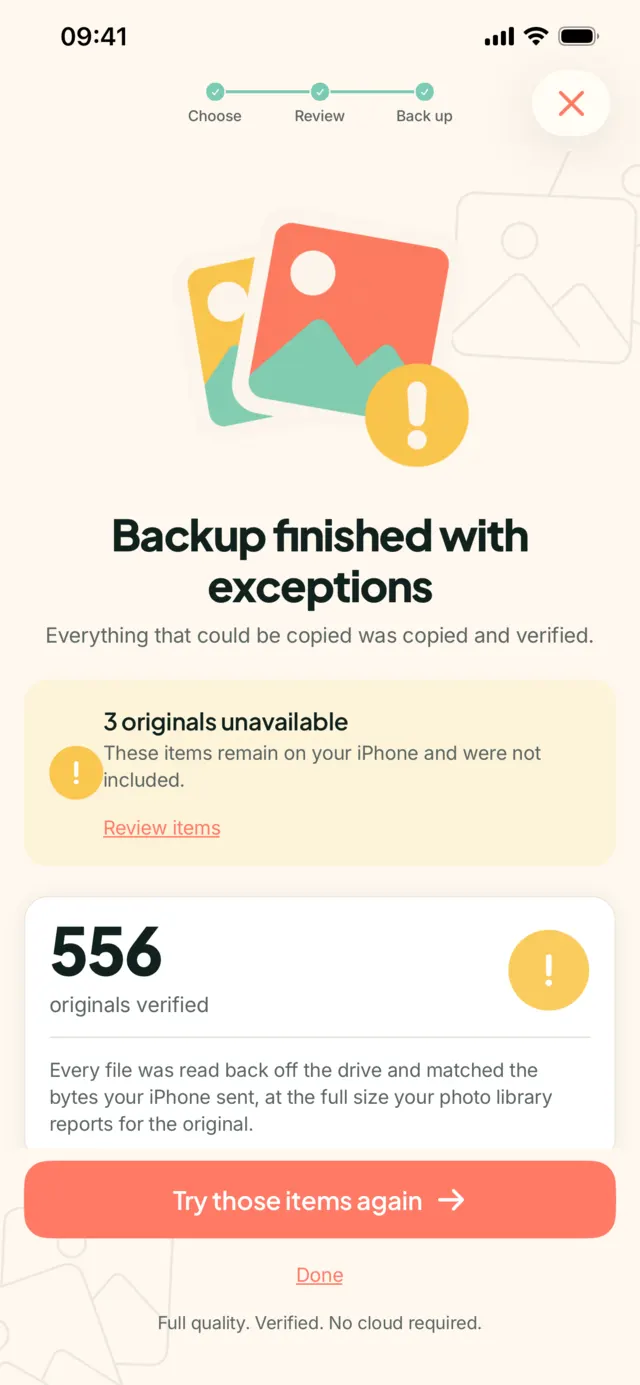
My Photo Copy works out a SHA-256 fingerprint of each file as the iPhone streams it to the drive. After the file is written, it reads the file back off the drive and checks the fingerprint against the data your iPhone sent. It also checks the file's size against what the photo library reports for that original. If either check fails, the file is not counted as verified.
At the end of a run you see a number like "12,804 originals verified", and underneath, anything that could not be copied, listed by name with the reason. A short list of named exceptions is more useful than a clean-looking total that hides them.
Verification is a check of the file on the drive, not a guarantee about the drive. A drive that passes today can fail next year. That is why one drive is one copy, and a second copy somewhere else still matters.
Step 1: Compare the counts
Find how many items your iPhone holds. Scroll to the very bottom of the Library view in Photos, which shows a count of photos and videos, or look in Settings → General → About. Then compare that with the verified count.
The numbers rarely match exactly, and that is normal. The common reasons:
- Live Photos are one item in Photos but two files on the drive: the still and the short video.
- Recently Deleted items and shared albums are not part of your library count.
- A partial selection. If you chose a month, an album or just videos, the count covers only that.
What you are looking for is a big gap you can't explain. A few hundred missing items with no list of exceptions is a warning sign. A difference you can account for is fine.
Step 2: Deal with anything not copied
Read the list of items that could not be copied. The usual causes are an iCloud original that failed to download, a file too large for a FAT32 drive, or a drive that ran out of space. Fix the cause (Wi-Fi, reformat to exFAT, a bigger drive) and run the backup again. Later runs copy only what is new or missing, so you are not starting from zero.
Step 3: Open files on another device
This is the check that tells you the backup is useful, not just present. Plug the drive into a Mac, a Windows PC or a TV, and open:
- A few photos from different years, including your oldest.
- At least one long video, preferably 4K. These are the files that fail on FAT32 drives.
- A Live Photo pair: the HEIC or JPEG and the matching MOV.
- Anything you care about most, like a wedding or a birth.
With My Photo Copy the files sit in plain dated folders, like 2024/07/IMG_4231.HEIC, so you can find a given month without any app. Check that dates look right in the file info. On older Windows PCs, HEIC photos may need Microsoft's HEIF extension to preview; that is a viewer issue, not a damaged file.
Step 4: Keep a second copy
A verified backup on one drive protects you from a lost or broken phone. It does not protect you from losing the drive. Copy the drive to a second one, or run a second backup to another drive, and keep it somewhere other than where the first one lives. See the iCloud storage guide if you want the cloud to be that second place.
What verification can't tell you
Be clear about the limits. Verification checks that the file on the drive matches what the iPhone sent. It can't recover a photo that was never in your library, such as pictures that only exist inside a messaging app. It doesn't restore anything into Photos either. The files are plain, so to put them back you import them through Photos or Files yourself. And it says nothing about how long the drive will last.
Before you delete anything
If the point of the backup is to free space on your iPhone, wait until all of these are true: the run shows a verified count you can explain, the list of items not copied is empty or accepted, you have opened files on another device, and there is a second copy. Then delete. Photo Trim can help clear duplicates and old screenshots once you are there.
Get a backup you can check
My Photo Copy copies your originals to a USB drive and reads every file back to verify it. Anything not copied is listed by name. No computer, no cloud, no account. Free for the first 250 photos and videos.

New to USB backup? Start with how to back up an iPhone to a USB drive.