 My Photo Copy
When iCloud storage is full, you have four real options: pay for a bigger iCloud+ plan, delete things you don’t need, move photos to a computer, or copy them to a USB drive straight from the iPhone. If photos and videos are what is filling it, the last two let you keep everything while taking it out of iCloud. Whatever you choose, copy and check before you delete anything, because with iCloud Photos on, deleting from iCloud deletes from every device.
First, see what is actually using the space
Go to Settings → [your name] → iCloud. The bar at the top shows the breakdown. Photos is often the largest part, but not always:
- Backups of old iPhones and iPads you no longer use can take gigabytes. Deleting a backup of a device you’ve replaced is often the quickest win.
- Messages with years of attachments can be large.
- iCloud Drive holds anything you or your apps saved there.
Also check which storage is full. “iCloud storage full” is about your iCloud account. “iPhone storage full” is about the phone itself, and has different fixes: see Settings → General → iPhone Storage. The two are easy to confuse, because with Optimise iPhone Storage on, the phone keeps small versions of photos and relies on iCloud for the originals.
The four options
| Option | Cost | Effort | What to watch |
|---|---|---|---|
| Upgrade iCloud+ | Monthly, grows with the library | A minute | You keep paying, and it is still one copy in one place. |
| Delete | Free | Hours of sorting | Deletions sync to every device. Easy to remove something you wanted. |
| Move to a computer | Free if you have one with space | Setup, cables, time | Needs a Mac or PC with enough disk, and the computer becomes the copy to protect. |
| Copy to a USB drive | A drive, bought once | One long first run, then short ones | A drive is one copy and can be lost. It is only as current as the last backup. |
Upgrade iCloud+
The easiest option, and the right one if you want every photo on every device without thinking about it. Plans go from 50 GB up to several terabytes, and can be shared with your family. The cost is ongoing, and the library usually only grows. It also means iCloud is the only full copy of your originals, which is worth fixing whichever option you choose.
Delete what you don’t need
Duplicates, burst shots, screenshots and screen recordings add up. Clearing them is worth doing anyway, and Photo Trim can find duplicates and old screenshots for you. On its own, though, deleting rarely frees enough if the real bulk is years of genuine photos and video.
Move photos to a computer
The traditional route. It works well if you have a Mac or PC with enough free space and you’re comfortable with it. If Optimise iPhone Storage is on, the originals must first download from iCloud to the computer, and the computer’s disk then needs its own backup.
Copy photos to a USB drive from the iPhone
No computer involved. A USB-C stick or SSD plugs into an iPhone 15 or later; older iPhones use a Lightning drive or Apple’s Lightning to USB 3 Camera Adapter. Which USB drive for iPhone helps with size and type, and iPhone USB backup covers the full process.
Moving photos out of iCloud without losing any
If you want to take photos out of iCloud rather than just keep a copy, the order matters.
- Copy the originals. With Optimise iPhone Storage on, most originals are only in iCloud, so whatever does the copying has to download each one first. My Photo Copy does this automatically. Use Wi-Fi, keep the app open on screen and the phone on a charger, and expect a large library to take a long time. You can stop and continue later.
- Check the copy is complete. My Photo Copy reads every file back off the drive and checks it against the data your iPhone sent, and its size against what the photo library reports. The result gives a count of originals verified, and lists by name anything that couldn’t be copied. How to verify a photo backup explains what to look for with any method.
- Make a second copy. One drive is one copy. Before deleting anything from iCloud, copy to a second drive, or copy the first drive onto a computer, and keep it somewhere else.
- Then delete. Delete the photos you backed up, for example everything before a certain year. They go to Recently Deleted for about 30 days, and space is freed once that is emptied.
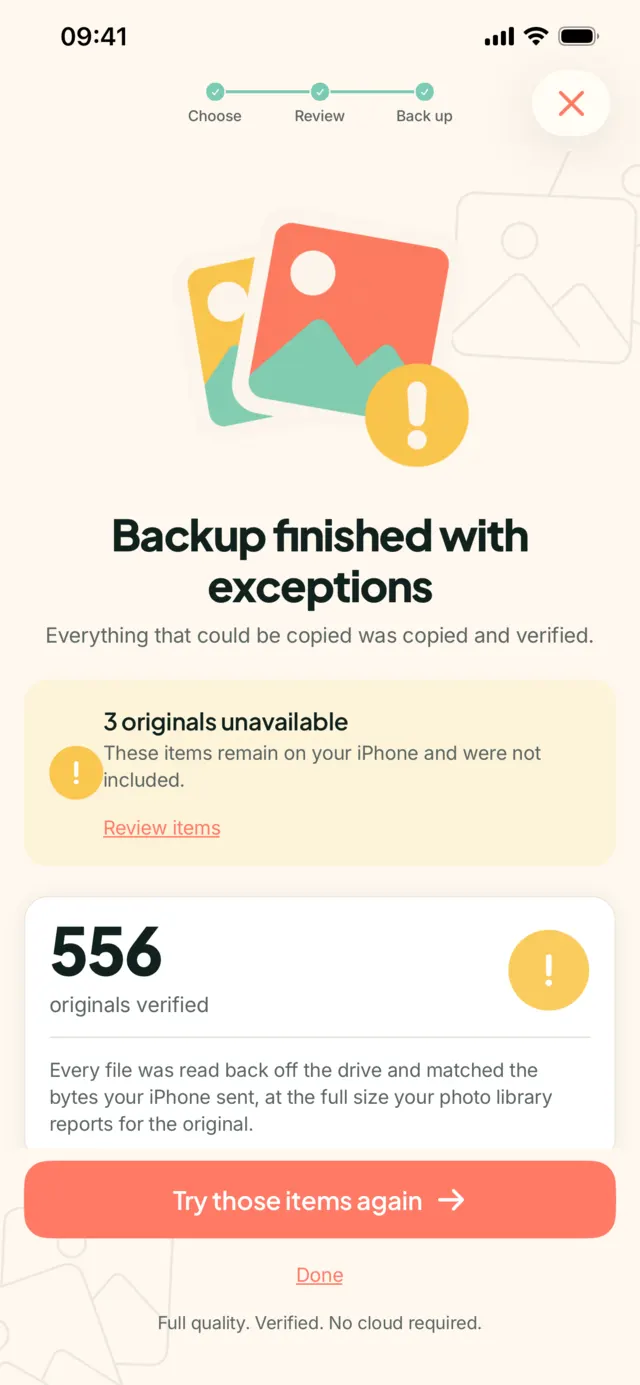
Photos you delete from iCloud are gone from your iPhone too. After that, the drives are your only copies of those photos. Keep them in two places, and don’t reuse the drives for anything else.
What you lose, and what you don’t
Photos on a drive are plain files in dated folders, such as 2019/08/IMG_0412.HEIC. You can open them on a Mac, a PC or many TVs. What you lose is convenience: they are no longer in the Photos app, searchable on your phone or synced to other devices. If you want some back later, you open them from the drive in Files and save them to Photos, or import them on a computer. My Photo Copy doesn’t restore into Photos for you.
That trade suits older years you look at rarely. Many people keep recent photos in iCloud and move older ones to drives, which keeps the plan small without deleting anything they care about.
If you are clearing space because you’re changing phones, the order is slightly different; see back up before a trade-in.
Copy your photos out of iCloud
My Photo Copy downloads your originals and copies them to a USB drive, then verifies every file. No computer, no account, nothing uploaded. The first 250 photos and videos are free.